Getting Setup with Parchment Digital Badges
Parchment Digital Badges lets you earn permissions to use makerspace equipment by completing training modules. After completing a module, you'll receive a badge that grants access to specific machines.
Overview
Before you can use equipment in labs that require Parchment Digital Badges:
- Complete the required training module in Canvas
- Earn the corresponding badge
- Connect your Parchment Digital Badges account to Pinpoint
You only need to connect your Parchment Digital Badges account once. After connecting, any badges you earn will automatically grant you access to the corresponding equipment.
Connecting Your Account
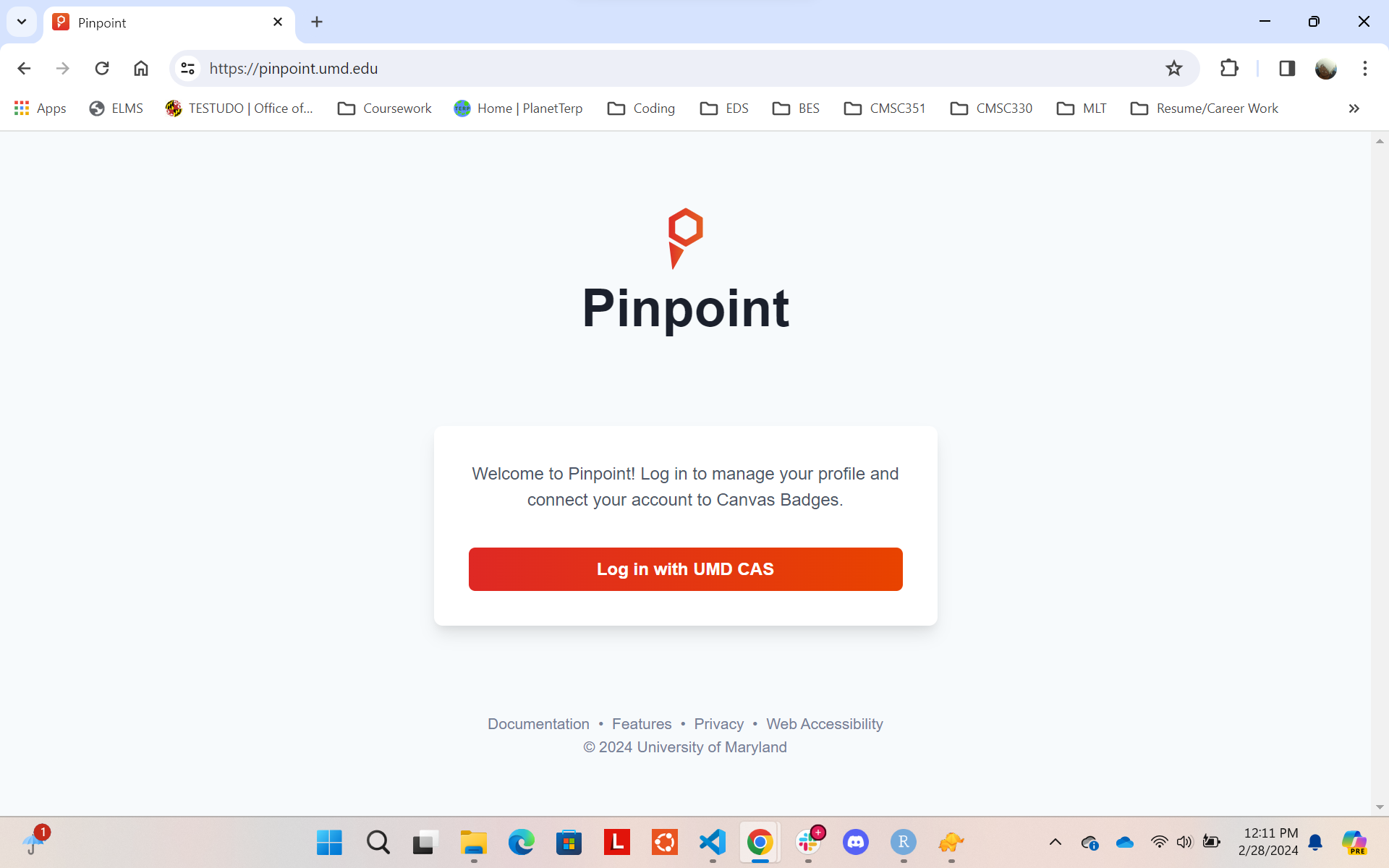
Step 1: Log into Pinpoint
Sign in to Pinpoint using your UMD credentials (CAS login).
Step 2: Access Your Profile
After logging in, you'll see your profile page:
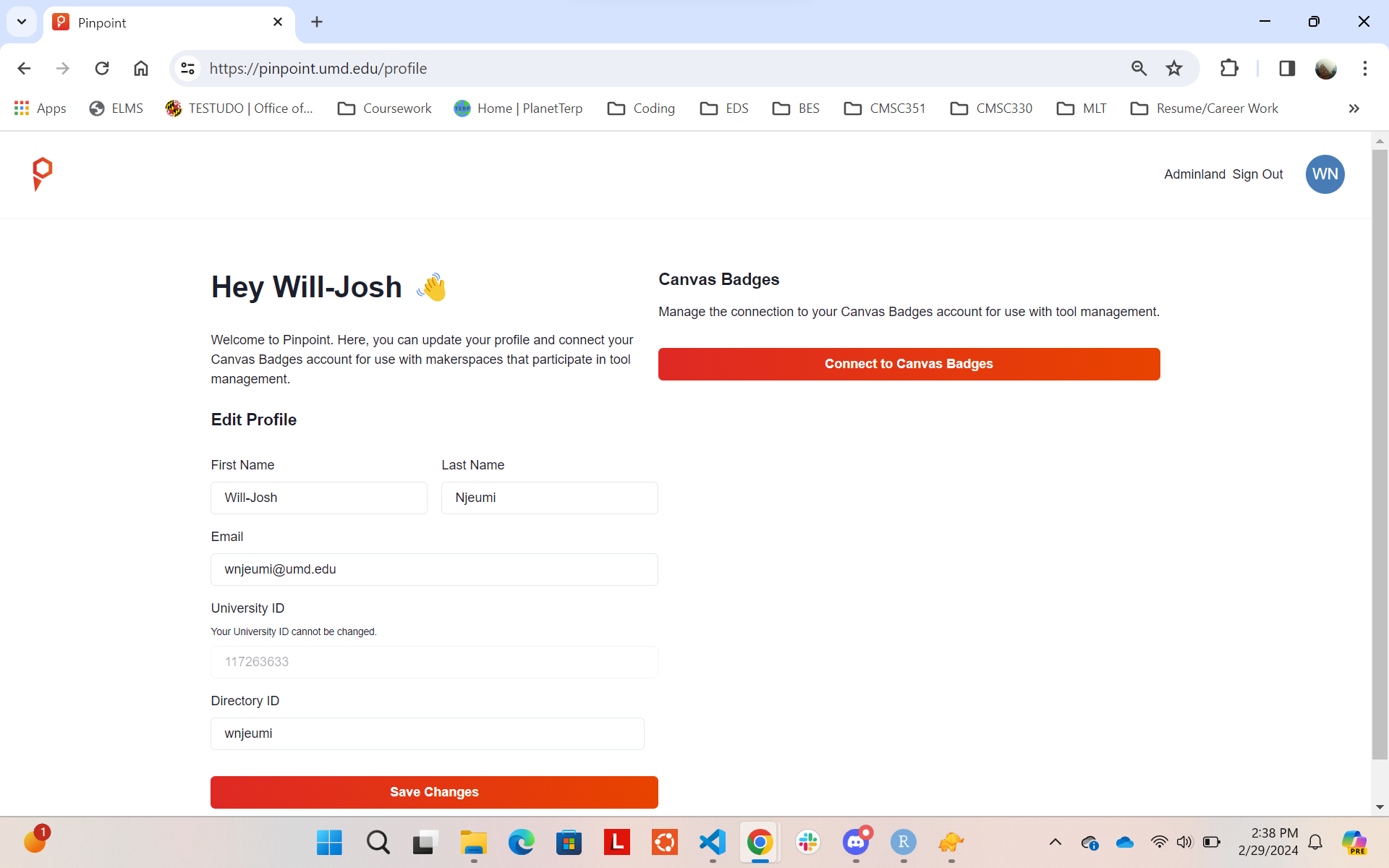
Step 3: Connect to Parchment Digital Badges
- Find the Parchment Digital Badges section
- Click the Connect to Parchment Digital Badges button
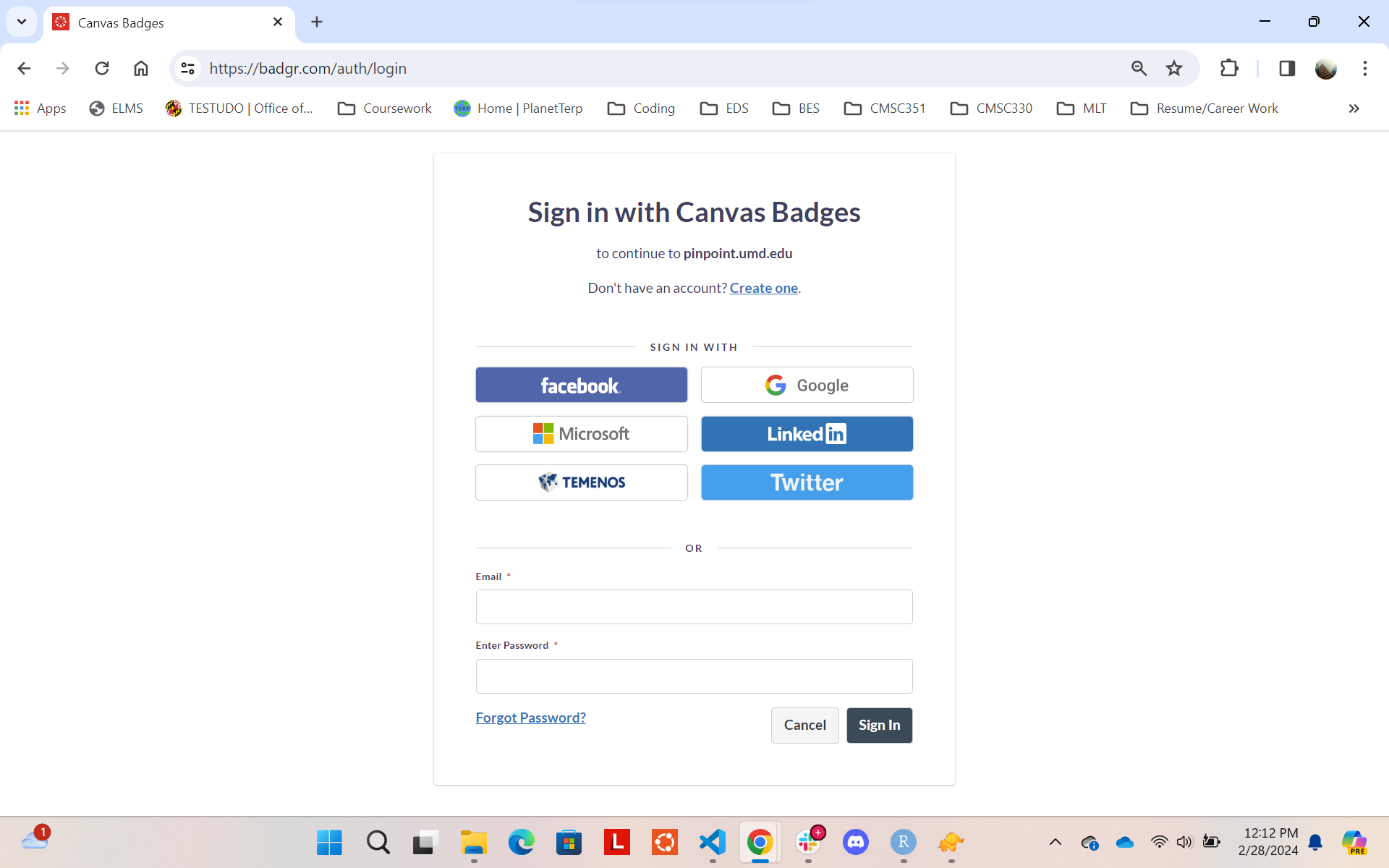
- Sign in to Parchment Digital Badges using your Google account (@terpmail.umd.edu)
Step 4: Authorize Access
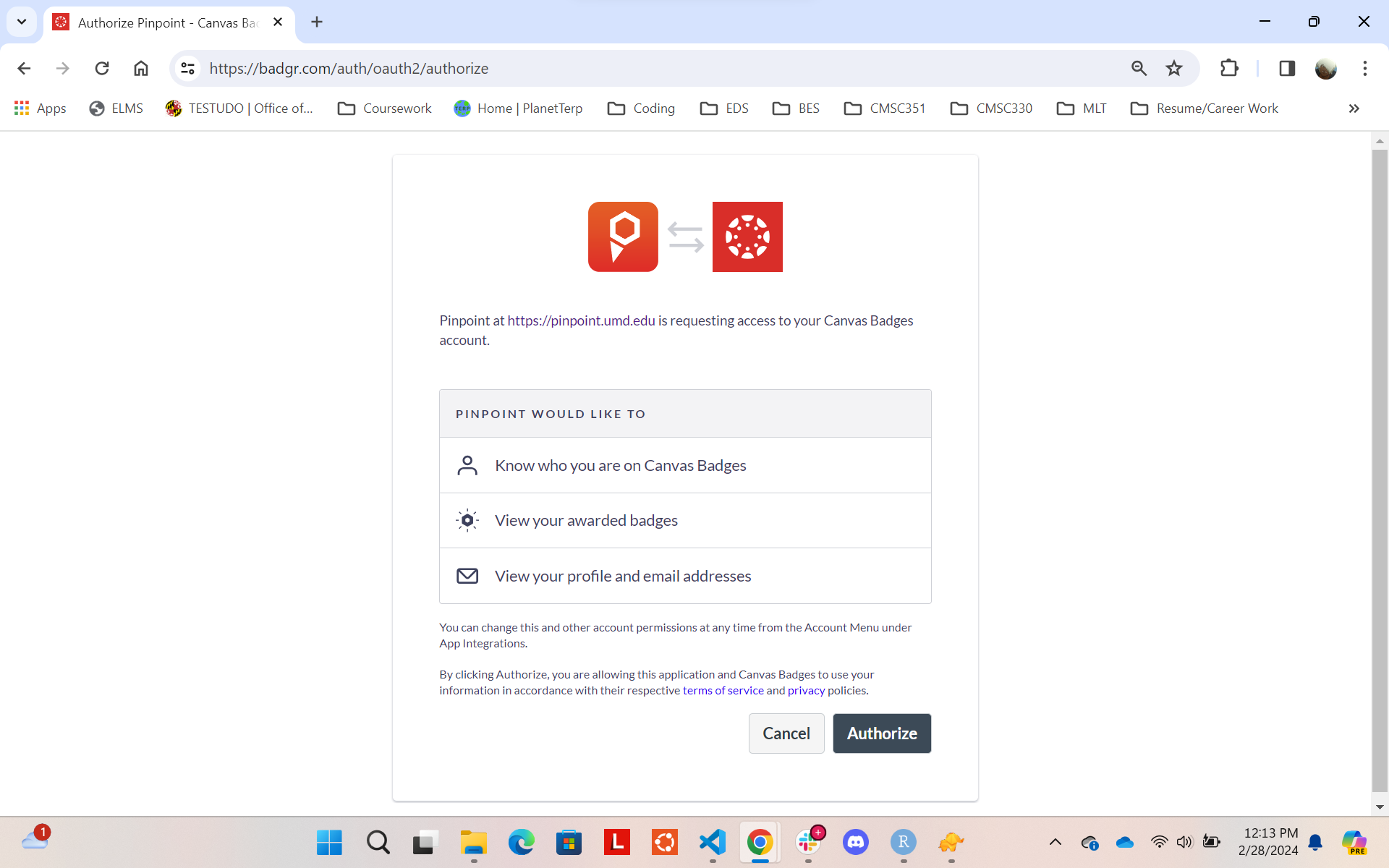
Allow Pinpoint to access your Parchment Digital Badges information:
- Review the permissions request
- Click the Authorize button
- This lets Pinpoint check your earned badges
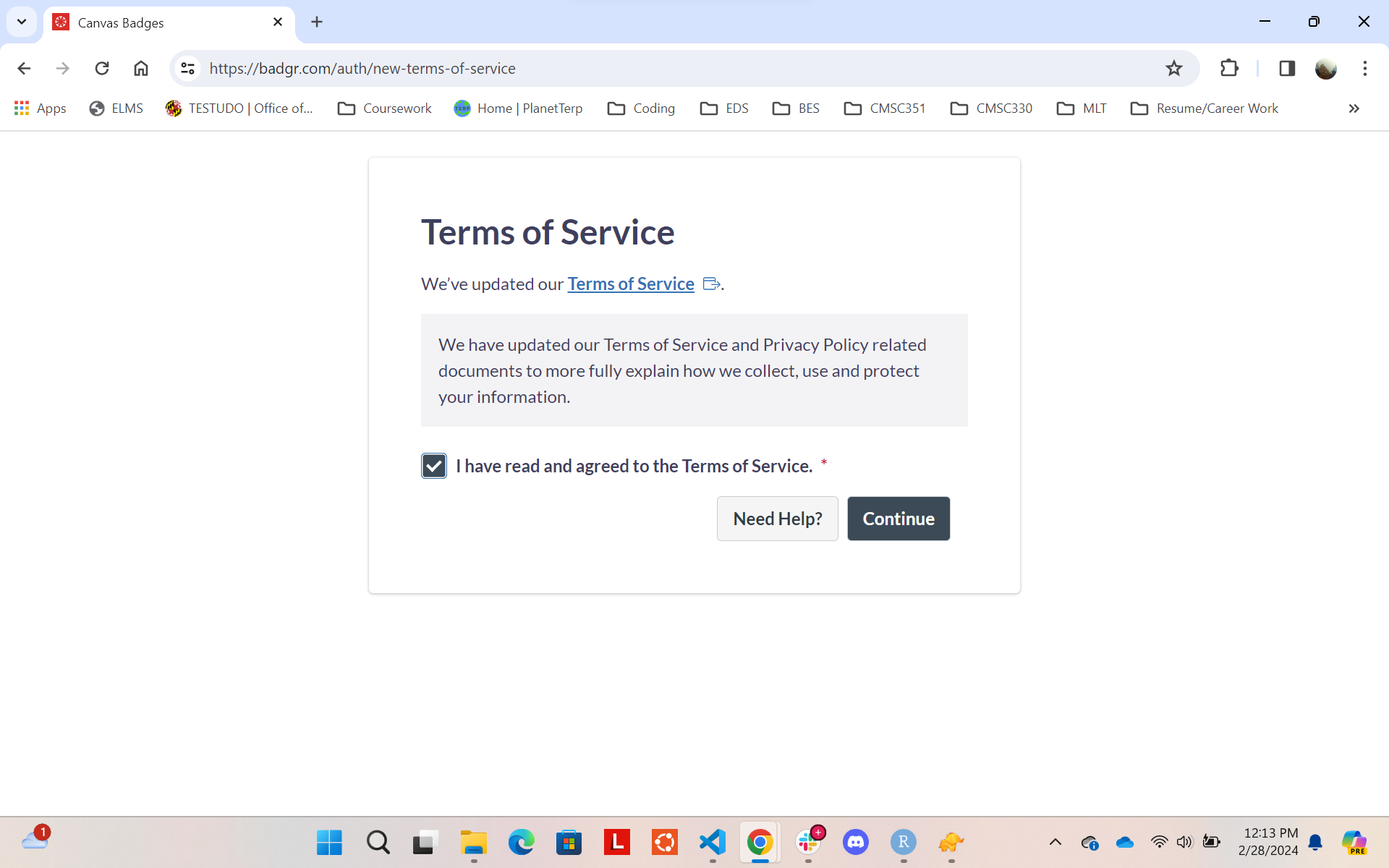
Step 5: Accept Terms
- Read the Parchment Digital Badges Terms of Service
- Check the box to accept
- Click Continue
Step 6: Confirmation
You'll see a success message when your accounts are connected:
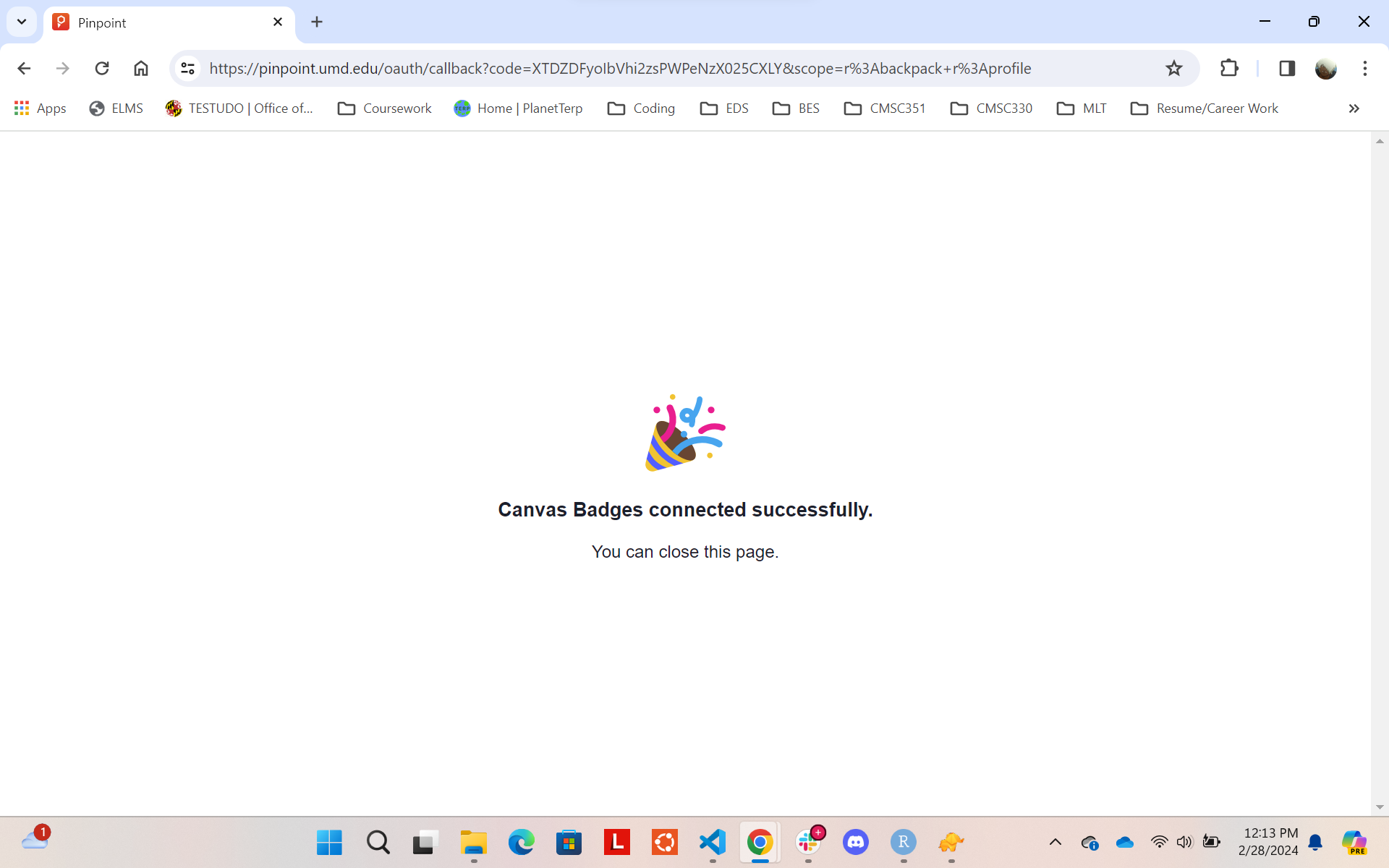
Your Pinpoint account is now connected to Parchment Digital Badges. Any badges you earn will automatically grant you access to the corresponding equipment.
Using Your Badges
After connecting your account:
- Complete training modules in Canvas to earn badges
- Badges grant access to specific types of equipment
- Your permissions work across all participating labs
- You can see which machines you have access to when signing into a lab
If you can't access a machine you need, check the lab's Canvas course for the required training module.