Viewing Lab Swipe Log
info
The Swipe Log page allows you to view historical records of all user sign-ins and sign-outs for your makerspace, including detailed information about machine usage during each session.
Overview
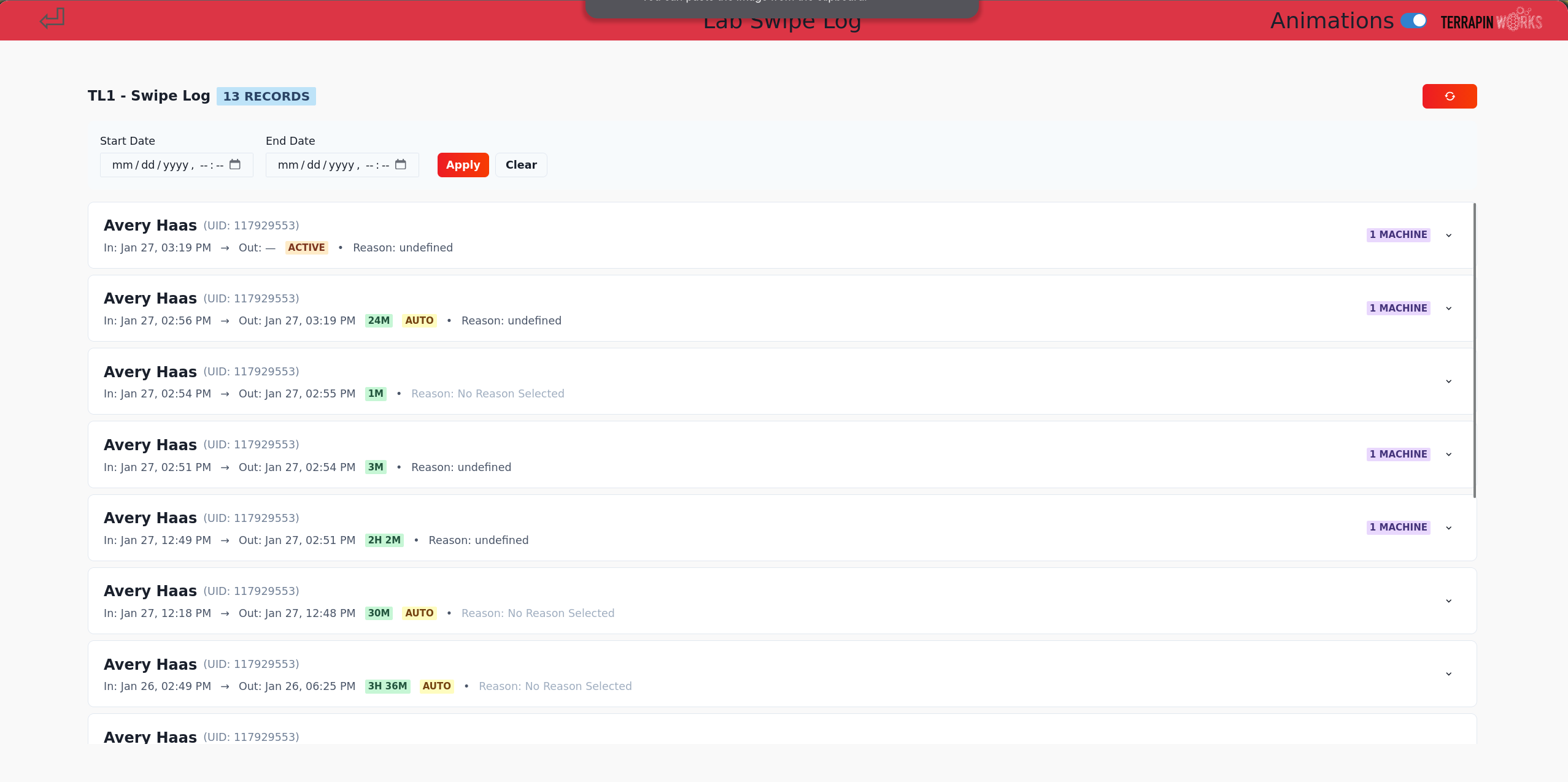 The Swipe Log provides:
- Complete history of all swipe in/out events
- User information for each session
- Machine usage details for each session
- Date range filtering
- Pagination for large datasets
- Session duration tracking
Accessing Swipe Log
Using the Website
- Navigate to Pinpoint
- Sign in using UMD CAS
- Click 'Adminland' in the upper right corner
- Select your lab from the list
- Click the "Swipe Log" button in the admin dashboard
Using the Kiosk
- Swipe your UID at the kiosk
- Select "Continue as Admin" when prompted
- Enter your PIN if required
- Select your lab
- Click the "Swipe Log" button
Using the Swipe Log
Viewing Records
The swipe log displays:
- User Information: Name and UID
- Swipe Times: When the user swiped in and out
- Session Duration: How long the user was active
- Status Indicators:
- Green badge for completed sessions
- Orange badge for active sessions
- Yellow "Auto" badge for auto-logged out sessions
- Machine Count: Number of machines used during the session
Filtering by Date Range
- Use the "Start Date" field to set the beginning of your search range
- Use the "End Date" field to set the end of your search range
- Click "Apply" to filter the results
- Click "Clear" to remove filters and show all records
tip
Date filters use datetime-local format, allowing you to specify both date and time for precise searches.
Viewing Machine Details
To see which machines were used during a session:
- Click on any swipe log entry to expand it
- View the list of machines used
- See the reason for each machine usage (if provided)
- View the directory ID associated with the session
Pagination
When viewing large datasets:
- Use the "Previous" and "Next" buttons to navigate between pages
- The page indicator shows your current position (e.g., "Page 1 of 5")
- Each page displays up to 50 records
Refreshing Data
Click the refresh icon in the top right corner to reload the latest swipe log data.
Understanding Session Information
Session Status
- Active Session: Shows "Active" duration and orange badge - user is currently swiped in
- Completed Session: Shows duration in hours/minutes and green badge - user has swiped out
- Auto-Logout: Yellow "Auto" badge indicates the session was automatically ended by the system
Machine Usage
Each expanded session shows:
- Machine names used during the session
- Reason for machine usage (if provided)
- Directory ID for tracking purposes
note
If no machines were used during a session, the expanded view will indicate "No machines used during this session".
Use Cases
- Audit Trail: Review who accessed the lab and when
- Usage Analysis: Understand patterns of lab usage
- Troubleshooting: Investigate specific user sessions or machine usage
- Compliance: Track access for reporting or security purposes